NOTE: SMTP2GO now adds DKIM signatures automatically to all outgoing emails. If you want to add your own domain names, you can do so on SMTP2GO. After you add the domain names, SMTP2GO will automatically handle the signing without you having to enable it manually or setting up DKIM manually.
This article will help you set up your domain on SMTP2GO using a few simple steps.
Setting Up a Sender Domain
- Sign in to your SMTP2GO account and go to the ‘SMTP2GO control panel’.
- Navigate to ‘Settings > Sender Domains’.
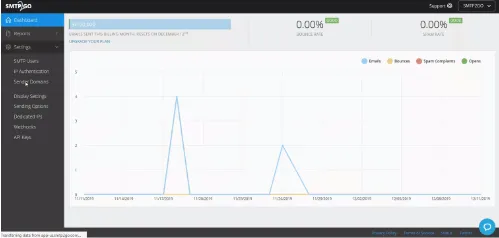
- Enter the Domain names you use to send emails. Copy the CNAME records generated.
Setting Up the DNS Record
- Login to your DNS management panel.
- Navigate to ‘Create DNS RECORD’ and select CNAME from the resource type.
- Paste the copied CNAME records from SMTP2GO and click on ‘Save’.
Now that you have finished adding the Sender Domains, SMTP2GO will automatically add DKIM signatures to all your outgoing emails.
Check your DKIM records using EmailAuth’s free DKIM Record Checker.