[ Setup article ]

How to publish a DMARC Record on cPanel in these 3 easy steps

1 min readBy Team EA

cPanel DNS record editor for publishing a DMARC TXT record
  1. Log in to your cPanel account and navigate to the dashboard.
  2. Navigate to the ‘Domains section > DNS Zone Editor’. Click on the ‘Manage’ button for your desired domain.
  3. In the form that appears, enter the following details and click on the ‘+Add Record’ button:
    • In the ‘Host’ field, type ‘_dmarc’.
    • From the ‘Type’ drop-down list, select ‘TXT’.
    • In the ‘TXT Value’ field, enter the record sent to you by email or generated using EmailAuth’s DMARC Generator.
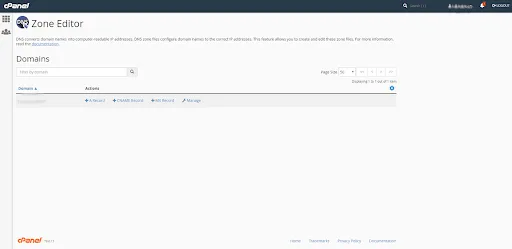
cPanel DNS record editor for publishing a DMARC TXT record

You have now successfully added the record!

Check the published DMARC record using EmailAuth’s DMARC validator. It may take anywhere between 24 to 72 hours for the record to reflect in your DNS.

[ DMARC guide ]

Part of the Knowledge BaseDNS-provider publishing guides · 39 guides

Enterprise provenance

Why top financial institutions and governments retired their email security dashboards.

Traditional email authentication platforms sell you a dashboard and ask your engineers to do the labour. In high-stakes environments, manual oversight means delayed enforcement, configuration drift and unmonitored shadow domains.

EmailAuth is the agentic email provenance platform. Our agents enforce p=reject, keep third-party senders aligned and move your domains to full RFC 9989 compliance, the new DMARC standard,, with human-in-the-loop auditability.

Governments Large enterprises Tier-1 financial institutions

SaaS · Dedicated tenancy · Air-gapped on-prem · BYOK encryption

[ Keep reading ]

All posts